Turn an AI image into a web-ready graphic
Break down the vase prompt, review the result and compare JPEG settings using a real PNG before downloading a web-ready image.
How do I prepare a generated image for upload?
Choose a purpose and aspect ratio, inspect the generated details, save the original and then meet your destination’s pixel and file-size requirements. This case uses the generator’s vase example: a 1024×1024 PNG compared at JPEG quality 90, 75 and a 200 KB target. It does not use reference uploads or image editing.
Open Batch Image Compressor / ConverterStep by step
- Define the destination. This square product-concept graphic uses 1:1 at 1K. Choose a landscape ratio before generating a cover. The compressor resizes proportionally; it cannot crop a square into a landscape.
- Open the image generator and use the Product still life prompt. The original English prompt appears below. Translations and repeated generations do not reproduce an identical image.
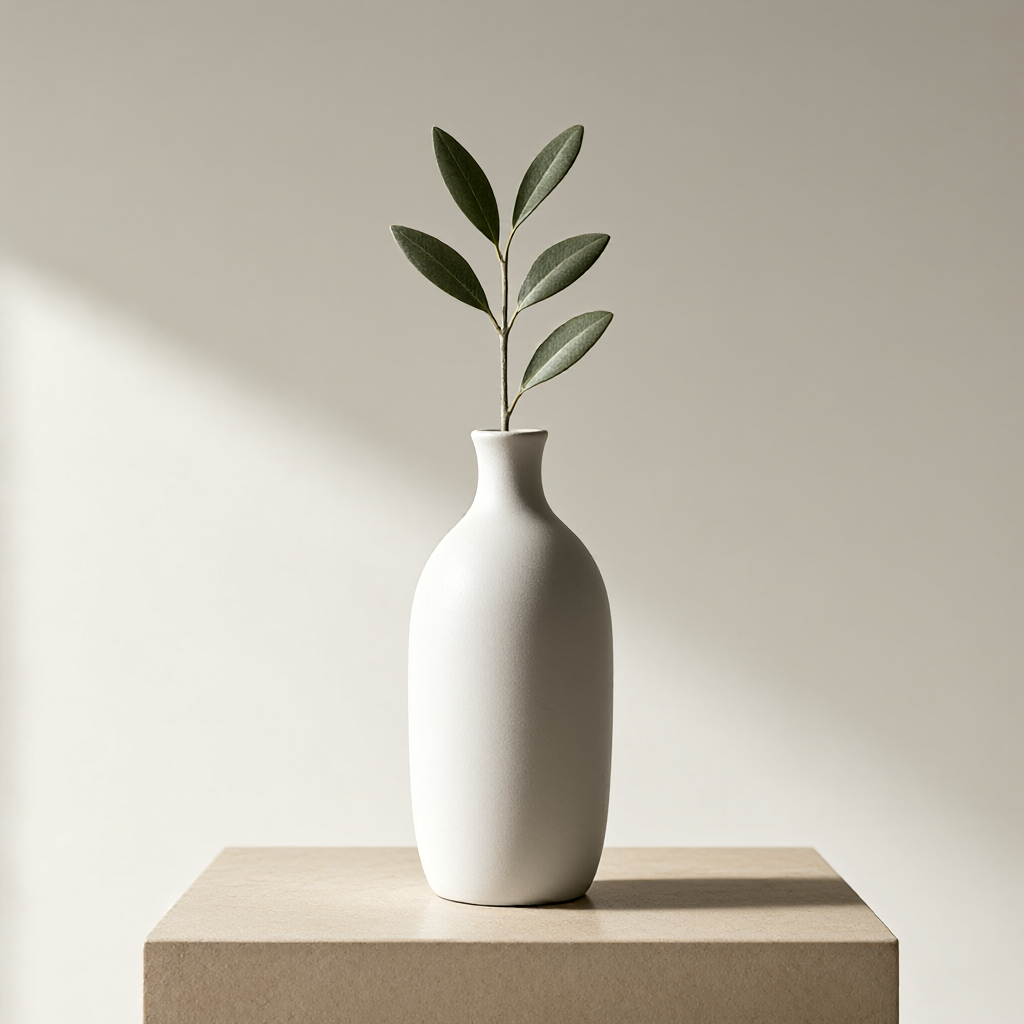
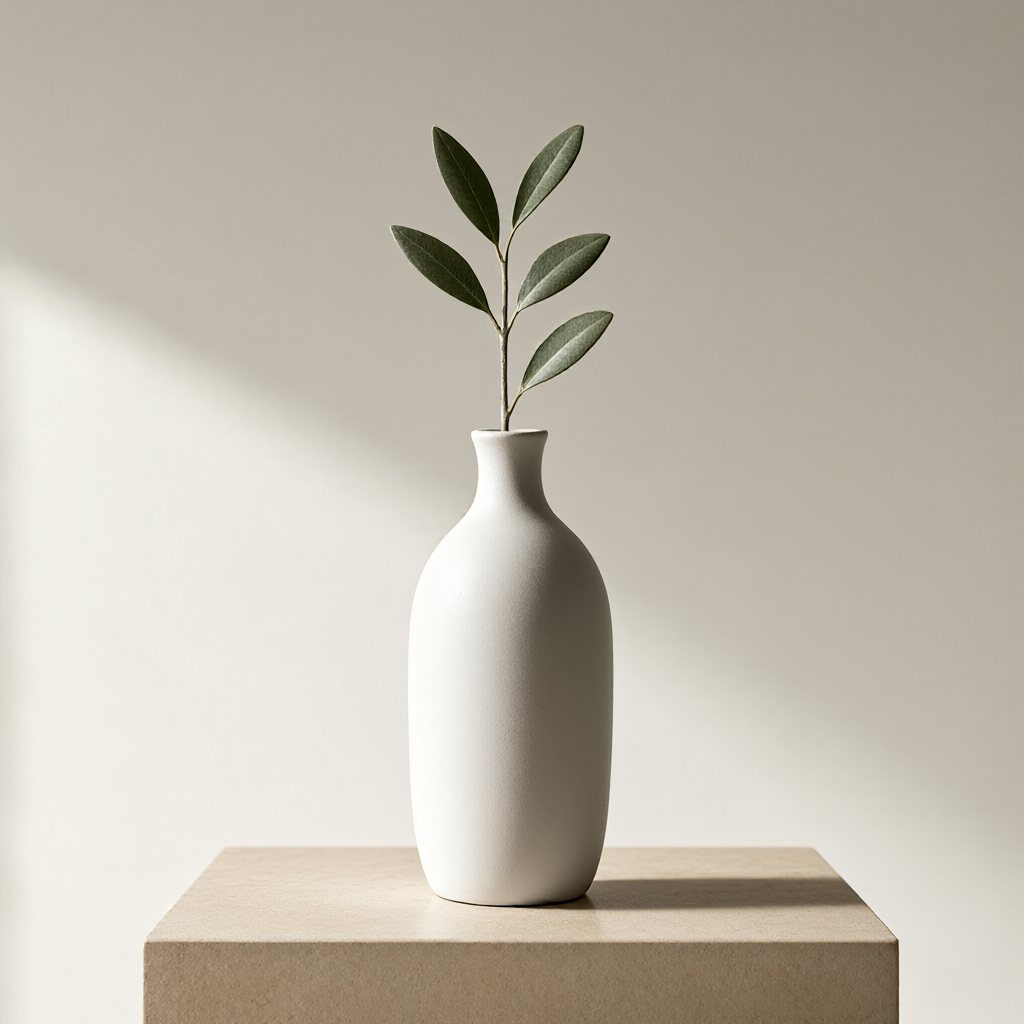
- Inspect the vase outline, leaf connections, shadows and unwanted text. The example has a centered subject and substantial empty background, but it is not a photograph of a real product or evidence of its appearance.
- Download and keep the original. The latest 20 browser history entries are not a backup; clearing browser data or generating more images can remove older entries.
- Open Image Compressor and select the original, JPEG, quality 75, maximum width 0 and target size 0. Run and inspect the result. Width 0 retains dimensions; target 0 disables size fitting.
- If your destination requires under 200 KB, set a target and rerun from the original. Vubilo’s 200 KB means 204800 bytes. For a 200000-byte limit, 190 KB leaves some room. Check bytes, not just the extension or quality number.
- Download the output and inspect edges, gradients and detail at its display size and at 100%. Check pixels and bytes. Add headlines in a layout editor rather than relying on generated lettering.
A worked example
Tested with the site’s compressor in Windows / Chrome 156. The input was the original PNG of our product still-life example. Every run started from that original; the generation model was not called again.
- PNG
- 1024 × 1024 px · 946462 bytes
- JPEG · 90
- 1024 × 1024 px · 75516 bytes
- JPEG · 75
- 1024 × 1024 px · 38813 bytes
- JPEG · 75 · ≤200 KB
- 1024 × 1024 px · 38813 bytes
This is a single-image encoding test, without a visual-equivalence score. Browser encoders, source images and settings affect results. Inspect your own output before use.
What each part of the prompt does
“matte white ceramic vase with a single olive branch” defines subject, material and count; “warm beige plinth” sets the scene; “soft side window light, subtle shadows” describes lighting; “minimal editorial product photography” gives a visual direction; “no lettering, no logo” specifies unwanted elements. These are requests, not guarantees: inspect the output.
Original prompt: A matte white ceramic vase with a single olive branch on a warm beige plinth, soft side window light, subtle shadows, minimal editorial product photography, no lettering, no logo
Revise one decision at a time
For a cover with a headline, try changing composition to “vase on the right third, empty space on the left”. This is a suggested experiment, not a tested result or a success-rate claim. Change composition first, examine placement, then decide whether to alter lighting.
Every attempt generates a new whole image; it does not lock the vase or leaves. Use your own photographs when exact product appearance matters. Regeneration is not precise image editing.
Why the 200 KB target did not shrink this sample further
At quality 75, this sample was already 38813 bytes, below 204800. Target fitting did not need to lower quality or dimensions. A target is a ceiling, not a request to pad a file to that size.
This simple background does not predict compression ratios for detailed landscapes, textures or other model outputs. JPEG is lossy: fewer bytes do not imply equal visual quality. JPEG output replaces transparency with white.
Troubleshoot the stage that failed
Generation failed: read the error and retry manually later rather than repeatedly clicking. Compression failed: check that the original opens and meets file/pixel limits. Blurry result: start from the original, increase quality or allow more bytes, and avoid repeatedly compressing the output.
AI generation sends your prompt to the model service. Compression runs in your browser, but site access and advertising can still make network requests. Do not include secrets or sensitive personal information in prompts.
More questions
Can I turn 1K into any exact size?
The compressor only scales down proportionally; it does not upscale or crop. Setting width 1920 on a 1024-pixel image will not enlarge it. For more pixels, generate again at 2K and check the actual output.
Can I use the image to advertise a product?
First check whether it could mislead viewers about shape, materials or features. A generated image is not a product photograph and does not establish permission to use brands, likenesses or other protected material.